

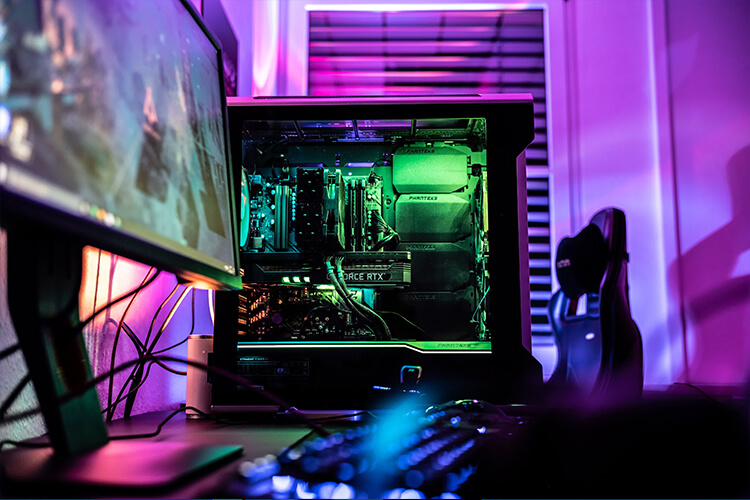
Ever wondered why more gamers build their own gaming PCs instead of buying pre-built systems? It’s not just a trend—building your own PC offers unmatched performance, customization, and the satisfaction of creating something yourself. This guide will walk you through every step of assembling your first gaming PC, ensuring the best gaming experience tailored to your needs MM2.
Contents
Understanding Your Needs
Assessing Your Gaming Requirements
Before you start shopping for components, it’s crucial to understand what you need from your gaming PC. Are you looking to play the latest AAA titles at ultra settings, or do you mostly play esports games that are less demanding? Knowing this will help you prioritize your budget and focus on the right parts.
Setting a Realistic Budget
Building a gaming PC can range from a few hundred dollars to several thousand. Decide on a budget that balances performance and affordability. Remember, you can always upgrade components later as your needs and budget evolve.
Future-Proofing Your Build
Technology is always advancing, so when you build your own gaming computer, consider investing in components that will last you several years. This doesn’t mean buying the most expensive parts, but rather choosing components with a good performance-to-cost ratio and room for future upgrades.
Choosing the Right Parts
Central Processing Unit (CPU)
The CPU is the brain of your PC. For gaming, you’ll want a CPU with high clock speeds and multiple cores. Popular choices include AMD’s Ryzen series and Intel’s Core series. Look for benchmarks and reviews to find the best option within your budget.
Graphics Processing Unit (GPU)
The GPU is arguably the most critical component for a gaming PC. It determines how well your system can handle graphics-intensive games. NVIDIA and AMD are the two main competitors in this space. Research performance benchmarks for the games you plan to play to choose the right GPU.
Memory (RAM)
For gaming, 16GB of RAM is the sweet spot, but 8GB can suffice for less demanding games. Opt for DDR4 memory with a speed of at least 3000MHz for optimal performance.
Storage
You’ll need both speed and capacity for storage. An SSD (Solid State Drive) ensures fast load times and smooth performance, while an HDD (Hard Disk Drive) offers more storage space at a lower cost. A common setup is to use an SSD for the operating system and frequently played games and an HDD for mass storage.
Motherboard
The motherboard connects all your components. Ensure it supports your chosen CPU socket, has enough RAM slots, and includes the necessary ports and features like Wi-Fi or Bluetooth if you need them.
Power Supply Unit (PSU)
A reliable PSU is essential for stable performance. Choose one with a wattage rating that exceeds your system’s requirements by about 20-30%. Look for certifications like 80 PLUS Bronze, Silver, or Gold for efficiency.
Case
Your PC case houses all the components. Choose one that fits your motherboard size (ATX, Micro-ATX, etc.), has good airflow, and suits your aesthetic preferences.
Assembling Your PC
Preparing Your Workspace
Find a clean, static-free environment to work in. Gather all your tools, including screwdrivers and anti-static wristbands, to prevent any damage to sensitive components.
Installing the CPU
Carefully place the CPU into the motherboard socket, aligning the notches. Secure it with the retention arm. Apply a small amount of thermal paste before attaching the CPU cooler.
Installing RAM and Storage
Insert the RAM sticks into the motherboard slots, ensuring they click into place. Install your SSD in the M.2 slot or a dedicated bay and secure it with screws. Attach your HDD to a drive bay and connect it with SATA cables.
Mounting the Motherboard and PSU
Secure the motherboard inside the case using standoffs and screws. Install the PSU in its designated area and connect the power cables to the motherboard, CPU, and GPU.
Installing the GPU and Other Components
Insert the GPU into the PCIe slot and secure it with screws. Connect any additional peripherals like Wi-Fi cards or extra fans. Make sure all cables are neatly managed to ensure good airflow.
BIOS Setup and Operating System Installation
Accessing the BIOS
Turn on your PC and press the designated key (usually Delete or F2) to enter the BIOS. Here, you can set the boot priority, configure RAM speeds, and perform other initial setups.
Installing the Operating System
Insert your OS installation media (USB or DVD) and follow the on-screen instructions. Windows 10 is a popular choice for gaming, but there are also Linux-based options if you prefer.
Updating Drivers
Once your OS is installed, update all drivers to ensure your system runs smoothly. This includes GPU drivers, motherboard drivers, and any peripherals.
Conclusion
Building your first gaming PC is a rewarding experience that combines technical skill with creativity. Not only do you get a machine tailored to your exact needs, but you also gain valuable knowledge and a sense of accomplishment.
