

In today’s digital age, organizations and individuals often need to transfer data between cloud storage services. This process, called cloud-to-cloud transfer, can be very time-consuming and complicated. However, with the right tools, it becomes easier to manage. In this article, we’ll explore what’s involved in cloud-to-cloud transfers and present quick methods as top solutions for simplifying this process.
What is data migration from one cloud to another?
Data migration from one cloud to another involves moving files, applications, or databases between different cloud storage platforms. This process is critical when changing service providers, optimizing storage, or integrating multiple cloud environments. Users can do this manually or by utilizing specialized tools – CBackup, a professional tool for cloud backup.
CBackup is a powerful and user-friendly cloud-to-cloud transfer option. Here’s why CBackup stands out:
- Versatile: CBackup offers cloud synchronization and cloud backup options, providing a comprehensive solution for all your data transfer needs.
- Simple to use: Its intuitive interface ensures that anyone can perform cloud-to-cloud transfers with ease.
- Automatic Cloud-to-cloud Synchronization: Users can set up automatic synchronization between clouds, including daily, weekly or monthly backup tasks, ensuring that data is always up-to-date.
- Email notifications: CBackup keeps you informed by sending notifications about the status of the transfer.
- File Filtering: This tool allows you to exclude specific types of files from the transfer process, ensuring that only necessary data is migrated.
Now that we’ve highlighted why CBackup is an excellent choice, let’s dive into how to run a cloud-to-cloud transfer.
How to Run Cloud to Cloud Transfer
There are multiple ways to perform cloud-to-cloud transfers. With CBackup, you can quickly synchronize files between Google Drive, OneDrive , or Dropbox. In addition, you can perform manual re-downloads and re-uploads.
Way 1. Transfer Files via Cloud Backup
CBackup offers a cloud backup feature where you can seamlessly back up your data from one cloud to another. This method is perfect for protecting data while in transit. Sign up and Step
1. Step 1. Sign in: Create an account on the CBackup website and sign in.
Step 2. Add Cloud: Navigate to the Storage tab and click Add Cloud. Select the cloud drive you want to connect to.
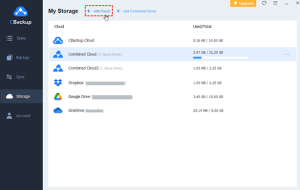
Step 3. Create a backup task: Go to the Backup tab and click on the Backup public cloud to public cloud button.
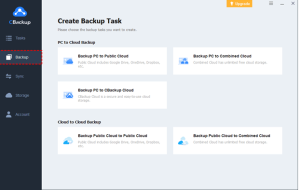
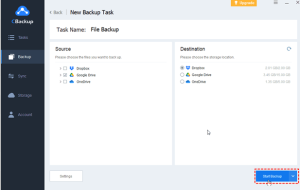
Step 4. Select the source cloud drive from which you want to back up your data, and then select the destination cloud drive. Select the source cloud drive from which you want to back up your data, then select the destination cloud drive and click Start Backup.
Tip: Customize the backup by selecting specific files or folders to transfer. You can also configure options such as File Filters to exclude certain file types.
Way 2. Run Cloud to Cloud Sync
Cloud Sync ensures that your data remains consistent across different cloud services in real time. With the help of CBackup, you can perform multiple migration operations.
Step 1. Log in to CBackup: Log in to your CBackup account.
Step 2. Add your cloud account: In the My Storage section, click Add Cloud and authorize access to add the cloud services you want to sync.
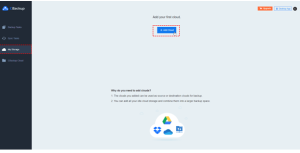
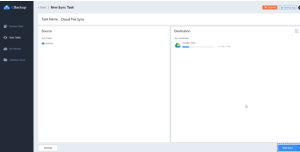
Step 3. Create a Sync Task: Go to the Sync Task tab, then click New Task and select the source and destination clouds for the sync task.
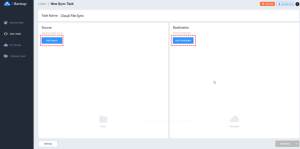
Tip: If you want continuous synchronization between two cloud accounts, select the files or folders to be synchronized and set the Auto Sync feature.
Step 4. Start Synchronization: Click Start Sync to start cloud-to-cloud synchronization. You can check the sync status in the CBackup dashboard at any time.
Way 3. Transfer Files to Another Cloud Manually
Manually downloading files from one cloud and uploading them to another is always an option for those who prefer to do things themselves. However, this method can be tedious and time-consuming, and it runs the risk of data loss during the migration process.
You can try the method if you have a small number of files. Take Google Drive and Drop Box as an example and see how to transfer files from one cloud to another:
- Sign in to your Google Drive account. And on the Google Drive page, click My Drive. Then, right-click on the target file and click the Download
- Extract the downloaded file or folder and save it locally.
- Go to the Dropbox website or another cloud drive and sign in to your account.
- Click Upload in the upper-right corner, and then select the target Google Drive files and folders.
Summary
In short, cloud-to-cloud transfers are an essential task for anyone managing multiple cloud storage services. While manual methods exist, tools such as CBackup offer a more efficient and reliable solution. With its multiple features, ease of use, and automation, CBackup is well suited for seamless data migration.
